 Leadveyor
Getting started with Leadveyor
Leadveyor reads every new enquiry in your sub-account — SMS, email, web chat, Facebook, Instagram and WhatsApp messages, and new contacts with form answers — and scores it by your own rules. The result goes straight back onto the contact: a tag, three Lead custom fields and a note explaining the score. Your team calls the hot leads first, and your workflows do the rest.
Setup takes about 5 minutes.
Open LeadveyorStep 1. Install the app
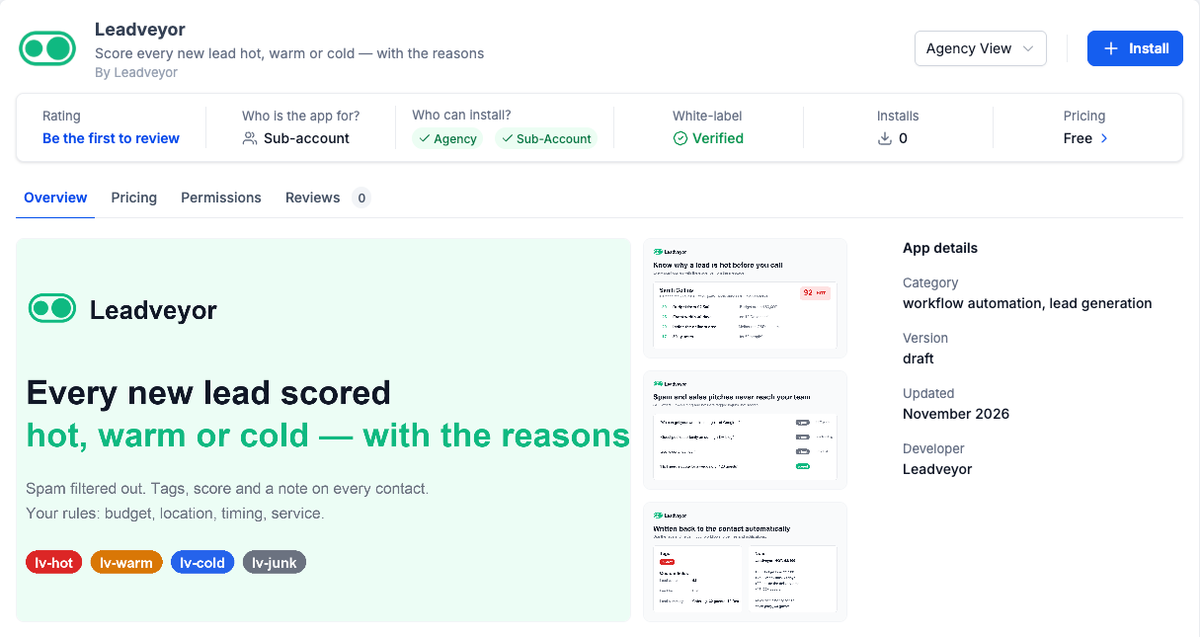
- Open App Marketplace, find Leadveyor and click Install.
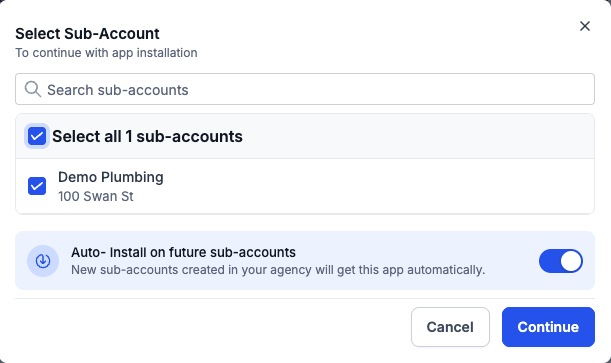
- In Select Sub-Account, tick the sub-accounts to install it on — agencies can Select all at once. Turn on Auto-install on future sub-accounts if every new client should be scored too. Click Continue.
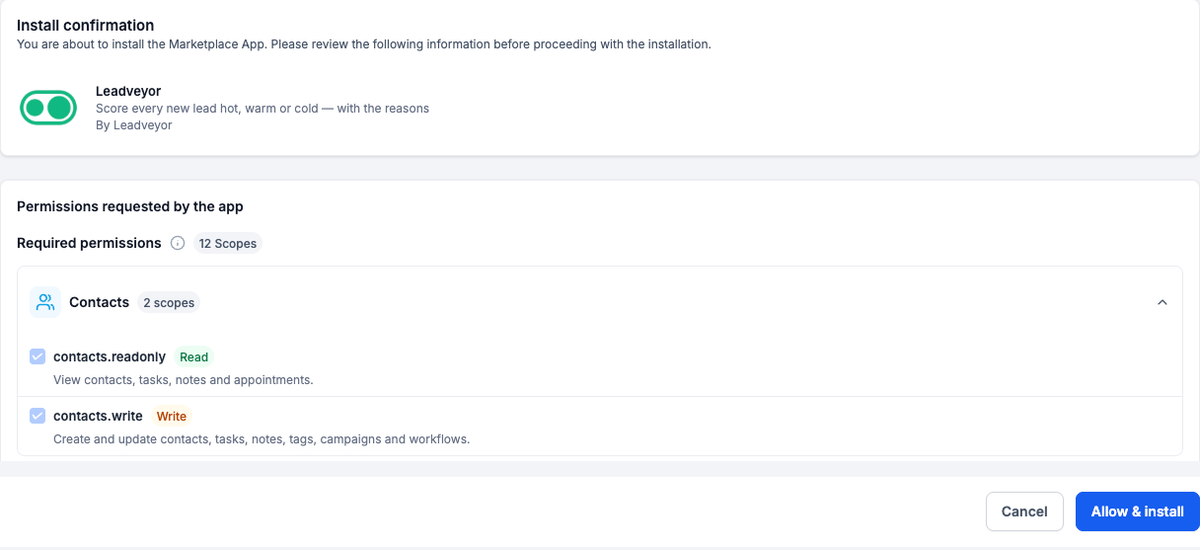
- Review the permissions Leadveyor asks for and click Allow & install.
Step 2. Link each sub-account to a workspace
After install you're taken to the Leadveyor console.
- Sign in, or create a free account (Google sign-in works).
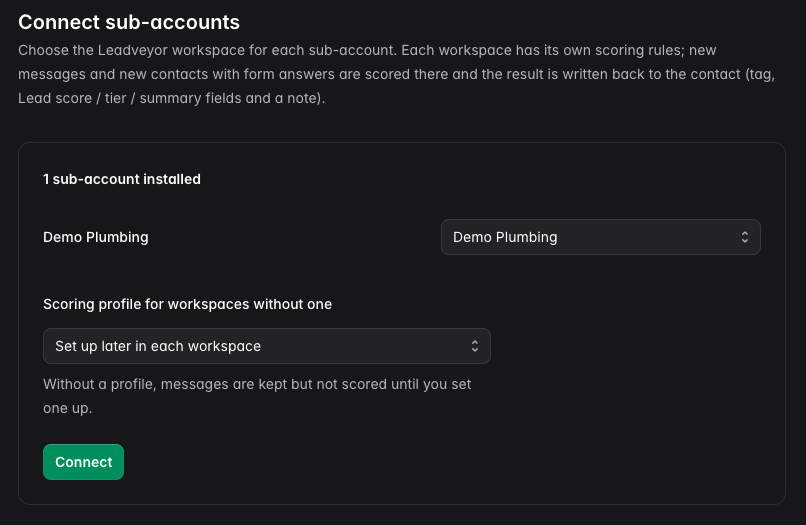
- For each sub-account, choose the Leadveyor workspace it should be scored in:
- New workspace — created with the sub-account's name, address, time zone and currency. Choose this for each separate business (each client of an agency).
- An existing workspace — if you already use Leadveyor for this business.
- Optional: under Scoring profile for workspaces without one, pick a profile you already have to copy it into the new workspaces, so scoring starts with the very first message.
- Click Connect.
You'll see Sub-account connected. Leadveyor has already added three custom fields to the sub-account: Lead score, Lead tier and Lead summary.
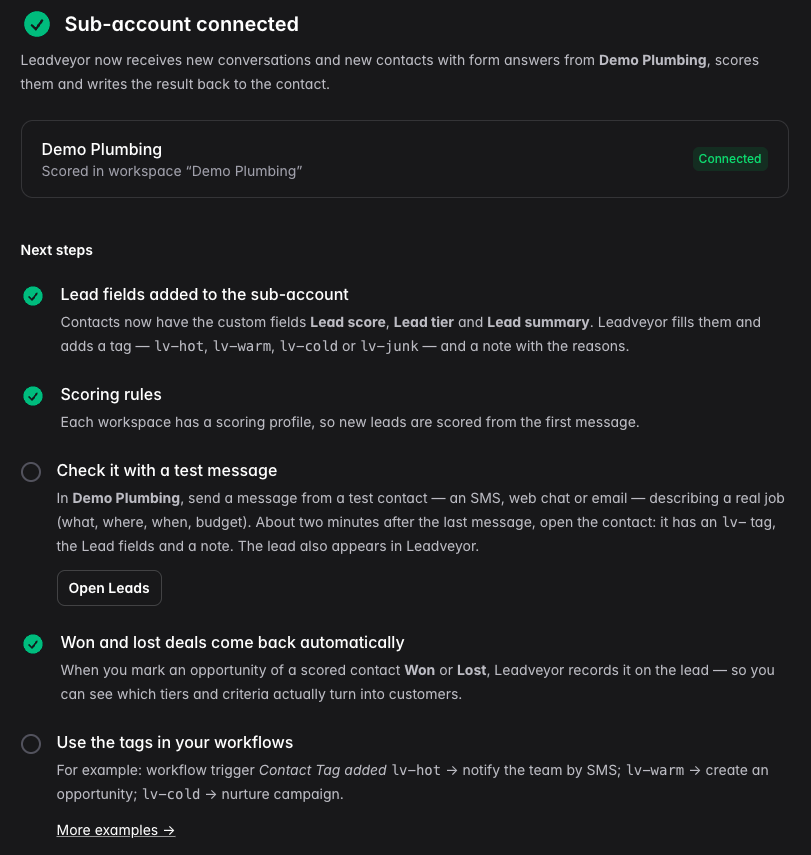
Each sub-account counts as a workspace on your Leadveyor plan: Free includes one, the Agency plan includes 25.
Step 3. Tell Leadveyor what a good lead is
If the workspace has no scoring rules yet, click Set up scoring (also under Setup guide in the console).
- Describe your best leads in plain words — which jobs are most valuable, what makes an enquiry urgent, what you never take on. Optionally start from a template for your industry (plumbing, electrical, heating and air conditioning, roofing, cleaning, landscaping, catering and events, and more).
- Click Write my scoring.
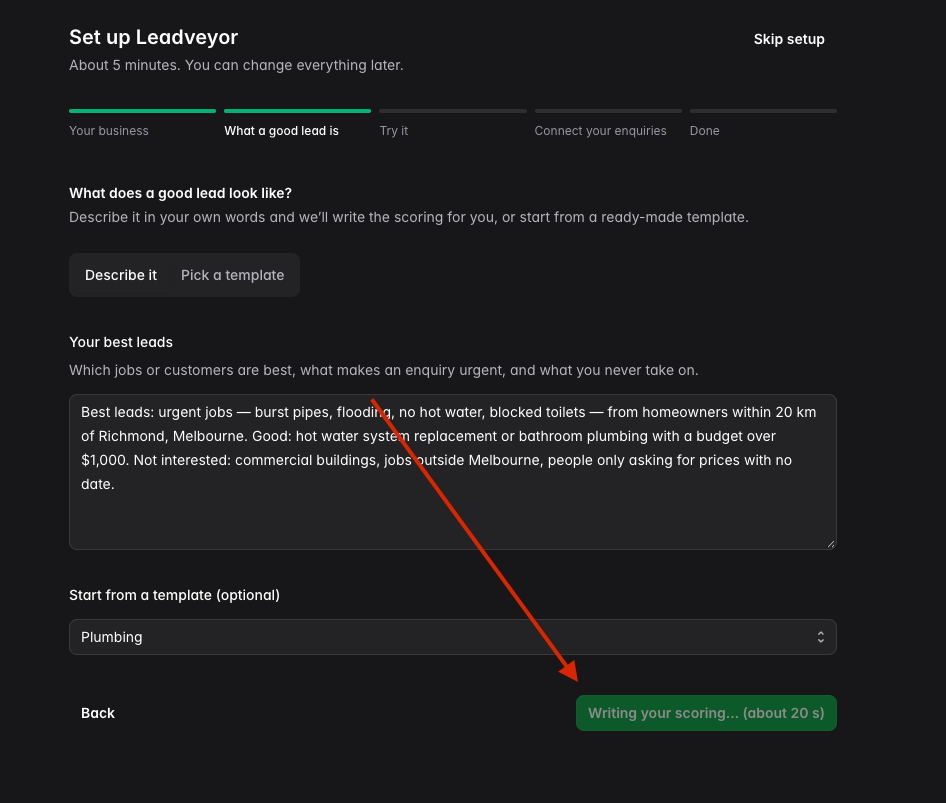
- About 20 seconds later you get a list of criteria with their points: what sends a lead straight to hot, what earns points, what rejects it. Check the assumptions shown below the list, then click Looks good, continue. You can change any criterion later in Scoring profiles.
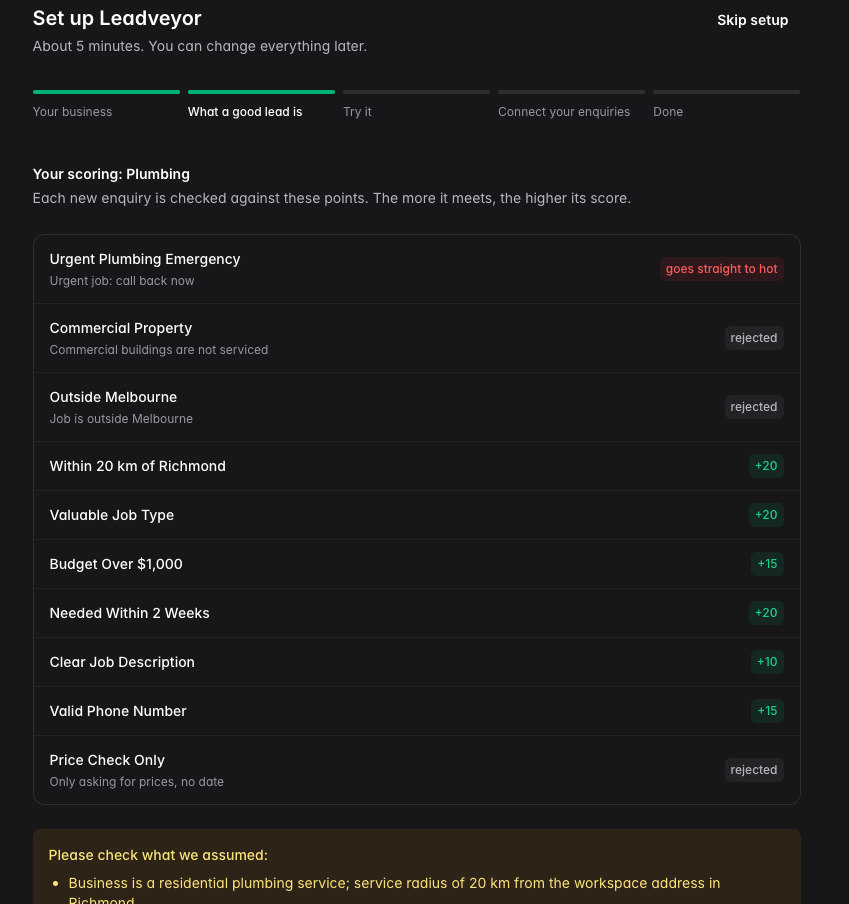
Until scoring rules are set, messages are kept and scored as soon as you publish them — nothing is lost.
Step 4. Send a test enquiry
- In the sub-account, send a message from a test contact — an SMS, a web chat or an email — written as a real customer would, for example: "Hi, our hot water system died this morning, can someone come today? 3 bedroom house in Richmond." Or create a contact with form answers.
- Wait about two minutes. Leadveyor waits until the conversation goes quiet, because people often send "Hi" first and the details after, and then scores all the messages together. New contacts with form answers are scored right away.
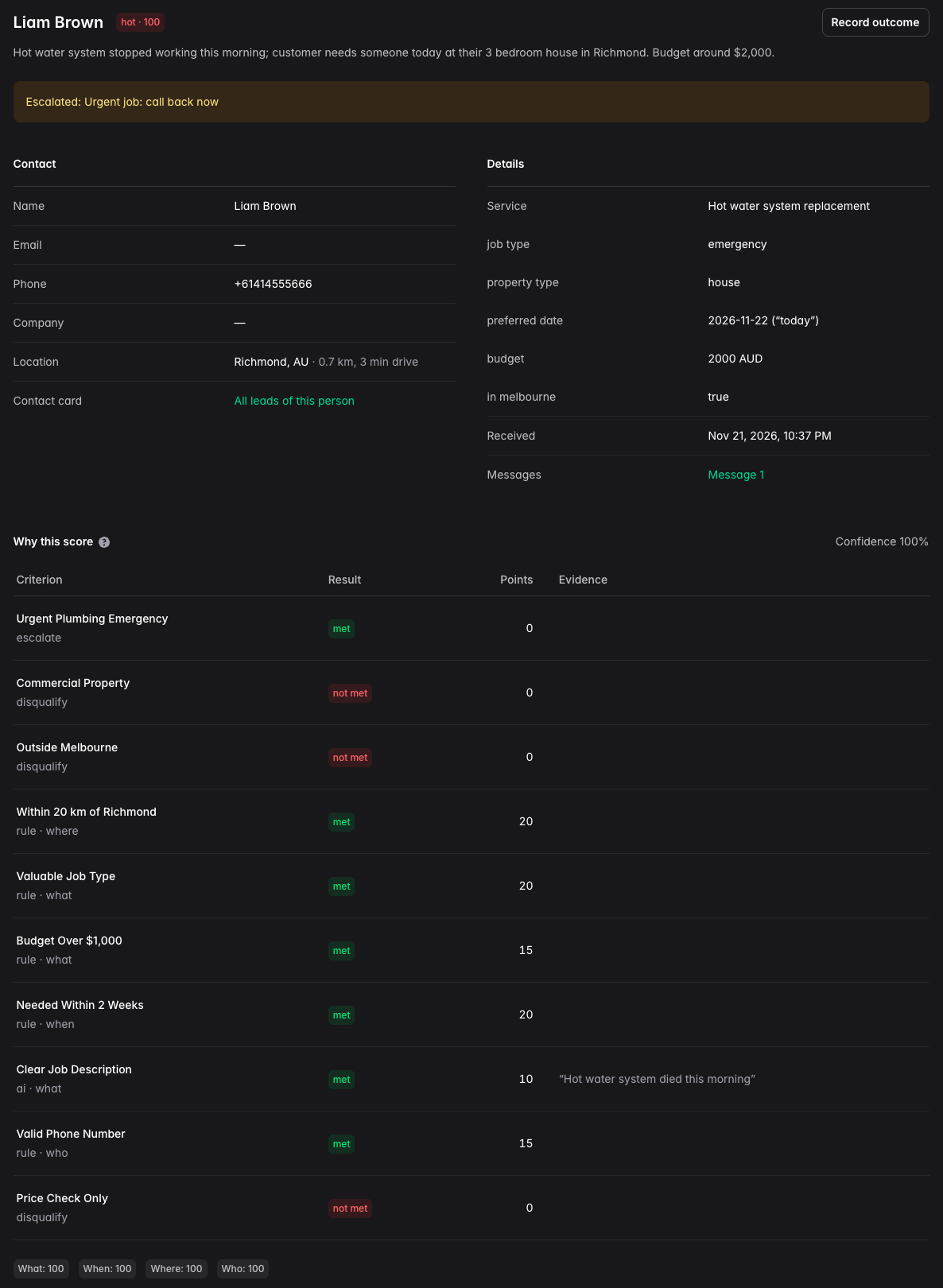
- Open the contact. It now has a tag, the three Lead fields and a note with the score, every criterion that earned points with the customer's own words, what's missing, and a link to the lead in Leadveyor.
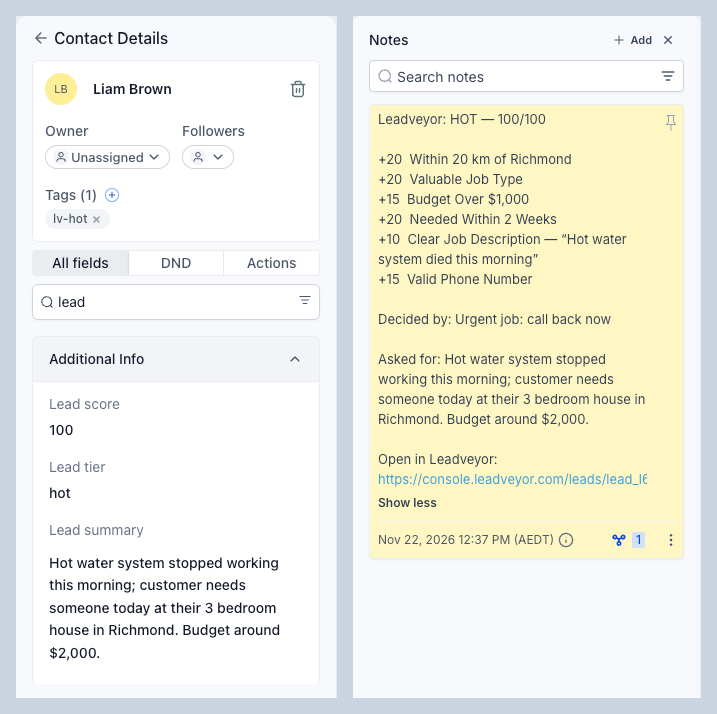
| On the contact | Value |
|---|---|
| Tag | lv-hot, lv-warm, lv-cold (your tier names, with the lv- prefix) or lv-junk for spam and sales pitches. A new score replaces the old lv- tag. |
| Custom field Lead score | 0–100 |
| Custom field Lead tier | The tier name |
| Custom field Lead summary | One line: what the customer wants |
| Note | The score, every criterion that earned points with the quote from the message, what is missing, and a link to the lead in Leadveyor |
A contact already scored as a lead never gets lv-junk from a later spam message.
The same lead appears under Leads in the Leadveyor console, with the full breakdown: the contact, the extracted details, the distance from your business and why it got this score.
Step 5. Use the tags in your workflows
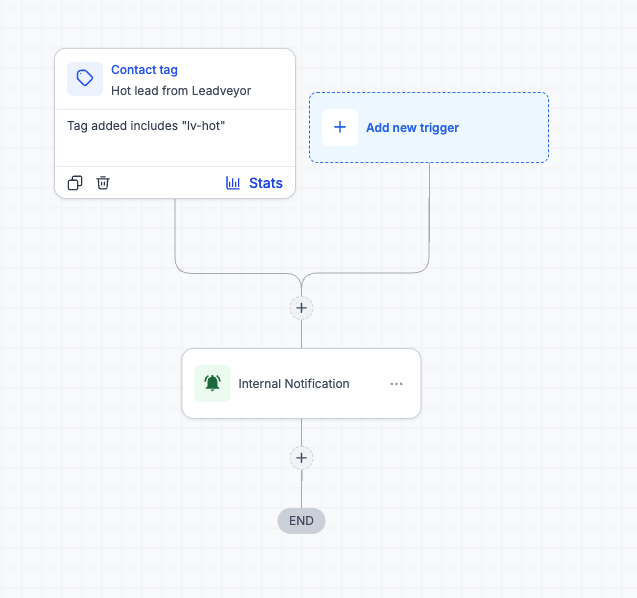
Create a workflow with the trigger Contact Tag → filter Tag added → the tag:
lv-hot→ Send Internal Notification or an SMS to the team, so the lead is called within minutes;lv-hotorlv-warm→ create or move an opportunity in your pipeline;lv-cold→ add to a nurture campaign;lv-junk→ mark the conversation as read, or leave it out of your reports.
Won and lost deals come back
When an opportunity of a scored contact is marked Won, Lost or Abandoned, Leadveyor records it as the lead's outcome — Won with the deal value. In the console you then see how many hot, warm and cold leads became customers, and which criteria actually predict a sale. Reopening the deal clears that outcome. Nothing to set up.
Manage and disconnect
- Connected sub-accounts are listed in the Leadveyor console under Integrations. Sub-accounts added later appear there as waiting to be connected.
- Integrations → Disconnect stops scoring for that sub-account. Uninstalling the app in the sub-account stops it too; the leads already scored are kept. Installing again reconnects the sub-account to the same workspace.
Access requested
Leadveyor reads contacts, incoming messages, the sub-account's name and address, its custom fields and the status of opportunities (won / lost); it writes tags, the three Lead custom fields and notes. It never sends messages to your contacts and never creates or changes opportunities. Tokens are stored encrypted; see the Privacy policy.
Help
Write to support@leadveyor.com.